Route responses by answer
Send each response to a different person or channel depending on what the respondent chose.
Routing is the feature that saves the most time. Instead of one inbox receiving everything, each response goes straight to the person who should act on it.
Example: a school enquiry form
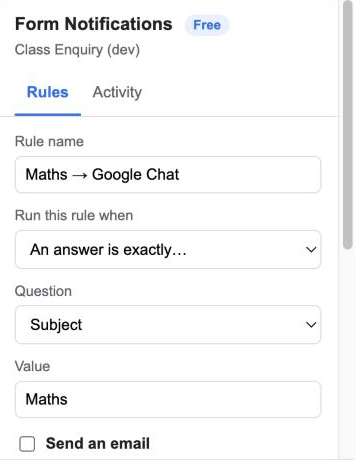
The form has a multiple-choice question Subject with the options Maths, Science and English.
- Click + New rule and name it Maths → Ms Rao.
- Under Run this rule when, choose An answer is exactly….
- Pick the question Subject and type the value Maths.
- Tick Send an email and put the maths teacher’s address in To.
- Click Save rule.
Repeat for Science and English. Each response now goes to exactly one teacher.
Condition types
| Condition | Fires when |
|---|---|
| Every response is submitted | Always |
| An answer is exactly… | The answer matches the value (case does not matter) |
| An answer contains… | The value appears anywhere in the answer |
| An answer is not… | The answer is anything other than the value |
| An answer is not empty | The respondent answered the question |
Checkbox questions join the ticked options with commas, so use contains for them.
More examples
- Job applications: when Role contains Sales, email the sales manager and post to #sales-hiring.
- Support requests: when Priority is Urgent, post to Slack; every response also goes to the support inbox.
- Event sign-ups: when Dietary needs is not empty, email the caterer.
Checking that it works
Submit a test response with the answer you set, then open Activity. Rules whose condition did not match are listed as skipped with the condition shown, so you can see exactly why a rule did or did not run.
Routing needs the Pro plan; the free plan includes one rule per form.