Works with Google Slides

Turn a deck into an animated GIF

Pick the slides, set the seconds per slide, click once. Preview the GIF in the sidebar, then save it to Drive or download it. For email signatures, social posts, product demos and tutorials.

Demo video coming soon

How it works

1

Open the sidebar

In your presentation choose Extensions → Deck to GIF → Open. Pick all slides or a range, the seconds each slide stays on screen, whether it loops, and the size.
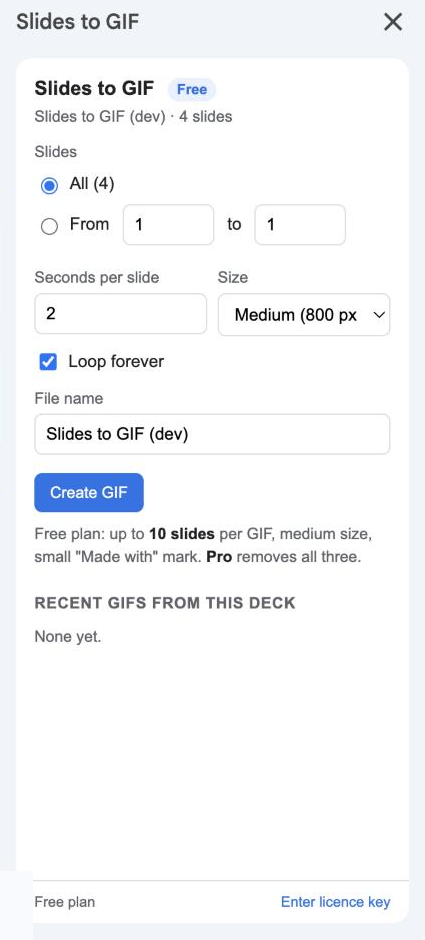
Open the sidebar
2

Create the GIF

Click Create GIF. Each slide is rendered and added to the animation with a progress bar; a 10-slide deck takes about 15 seconds. Stop any time.
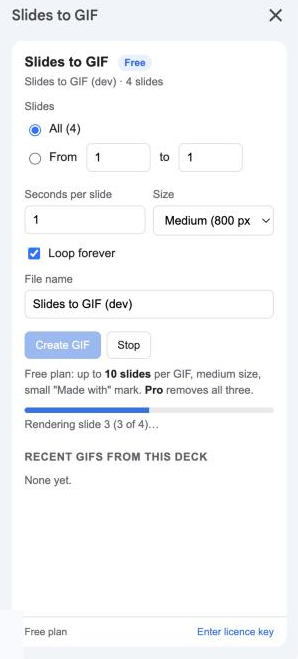
Create the GIF
3

Preview it

The finished GIF plays right in the sidebar with its size and dimensions, so you can check the timing before you share it.
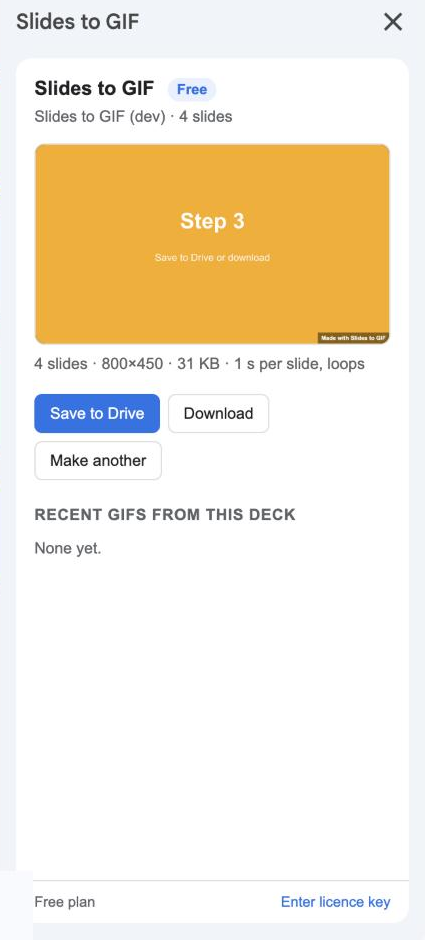
Preview it
4

Save or download

Save it into a Deck to GIF folder in your Drive (with a link you can share) or download it to your computer. Recent GIFs from the deck stay listed in the sidebar.
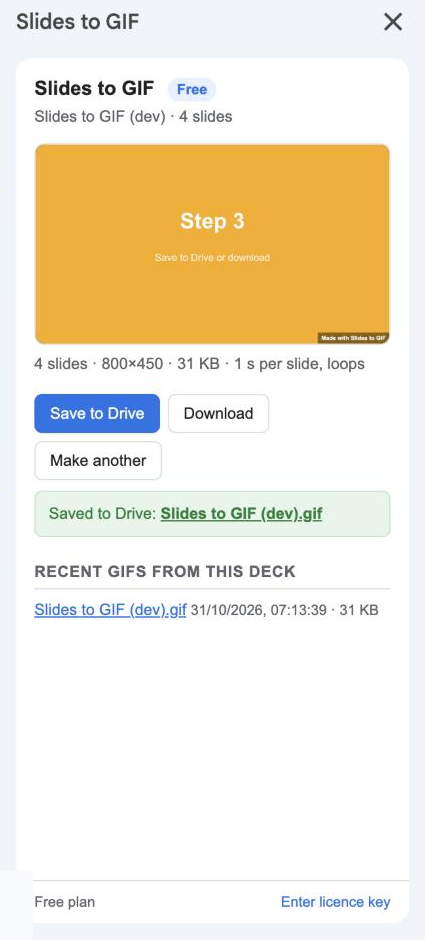
Save or download

Top features

Any slides, any order

All slides or a from–to range. Build several GIFs from one deck, one per section. Learn more

Any slides, any order

Timing and looping

From a tenth of a second to 30 seconds per slide. Loop forever, or play once for a short announcement. Learn more

Timing and looping

Exactly what Slides shows

Slides are rendered by Google itself, so fonts, images, charts and themes look the same as in your presentation. Learn more

Exactly what Slides shows

Two sizes

Medium (800 px wide) keeps files small for email and chat. Large (1600 px) for websites and crisp screens. Learn more

Two sizes

Built in your browser

The GIF is assembled on your computer, so there is no queue, no timeout and no file ever passes through our servers. Learn more

Built in your browser

Narrow permissions

The add-on reads your presentations and creates files only in the folder it made. It never asks for access to your whole Drive. Learn more

Narrow permissions

Ready to try it? It's free to start.

Install Deck to GIF

Plans and pricing

Start free. Upgrade when you need more.

Free

$0
  • Up to 10 slides per GIF
  • Medium size (800 px)
  • Small "Made with" mark on each frame
  • Save to Drive and download
  • Help Center support
Install

Pro

$29 / year per user
  • Unlimited slides per GIF
  • Large size (1600 px)
  • No "Made with" mark
  • Email support within 1 business day
Upgrade

GIFs with many large slides can be several megabytes. Email clients usually accept up to about 10 MB.

Frequently asked questions

Can I add transitions or animations?

No. Each slide becomes one frame; Google Slides animations and transitions are not captured. Put each stage on its own slide instead.

How big will the GIF be?

It depends on the artwork. Flat colours and text compress well (a few KB per slide); photos take more (100–300 KB per slide at medium size). The sidebar shows the size before you save.

Can I make a video (MP4) instead?

Not in this version. GIF is the format that plays everywhere without a player.

Where is the file saved?

In a folder called "Deck to GIF" in your Drive, created the first time you save. Recent GIFs from each deck are listed in the sidebar.

Does it work on a shared presentation?

Yes, if you can open it. The GIF is saved to your own Drive.

Can I cancel?

Yes, any time. The licence stays active until the end of the year you paid for.

Permissions it asks for, and why

We ask for the smallest set Google allows. Full details in the privacy policy.

PermissionWhy it is needed
presentations.currentonlyKnow which presentation is open and list its slides. This is the permission Google Slides gives to add-ons for the current file only.
presentations.readonlyAsk Google to render each slide as an image. Google's rendering endpoint only accepts this read-only permission; the add-on never edits any presentation.
drive.fileCreate the "Deck to GIF" folder and save the GIFs you choose to save. This permission only covers files the add-on itself creates; it cannot see the rest of your Drive.
script.external_requestFetch the rendered slide images from Google and talk to Google's Drive API to save files. No other address is contacted.
script.container.uiShow the sidebar inside Google Slides.
userinfo.emailKnow which Google account installed the add-on, for the licence.

Who uses it

Marketers animate a product teaser for LinkedIn. Teachers turn a four-step explanation into a looping GIF for the class site. Support teams record a “click here, then here” walkthrough. Anyone who wants a slide deck to play inside an email.