Install and send your first notification
From install to your first email in about two minutes.
1. Install the add-on
Open the add-on’s page on the Google Workspace Marketplace and click Install. Google will show the permissions it needs. Each one is explained on the privacy page.
2. Open it inside your form
Open the Google Form you want notifications for. Click the puzzle-piece icon in the top bar, choose Form Alerts, then Open. A sidebar appears on the right.
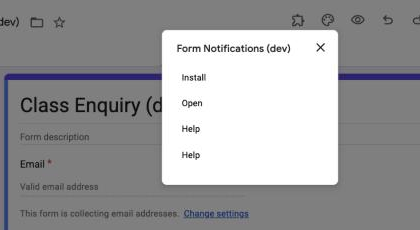
If the menu only shows “Help”, reload the form page once and try again.
3. Save the first rule
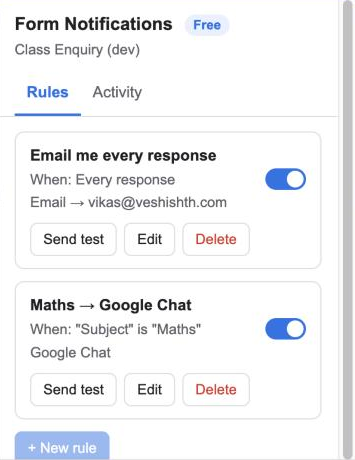
The first time you open the sidebar, a rule called Email me every response is already filled in with your email address. Click Save rule.
The footer changes to “Listening for responses”. The add-on has now set up a trigger that runs every time someone submits the form.
4. Send a test
Click Send test. The add-on takes the most recent response (or sample answers if there are none yet) and sends the email. Check your inbox: the subject is “New response: your form name” and the body lists every answer.
5. Check the Activity tab
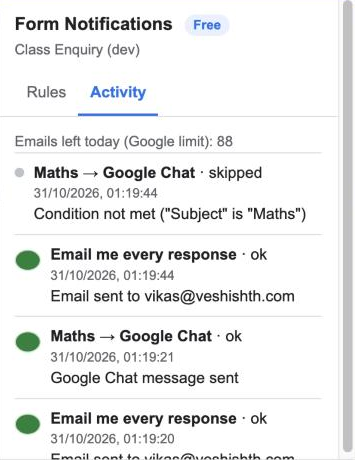
Click Activity. Every run is listed with a green, grey or red dot:
- Green, ok: sent, and to whom
- Grey, skipped: the rule’s condition was not met
- Red, error: what went wrong
You can now share the form. Every submission will trigger your rule. Next: route responses by answer.