Works with Google Forms

Email and chat notifications for Google Forms

Get an email, Slack, Discord, Google Chat or Telegram message the moment someone submits your form, and send each response to the right person based on their answers.

Demo video coming soon

How it works

1

Install and open

Install from the Google Workspace Marketplace, open your form, and choose the add-on from the puzzle-piece menu.
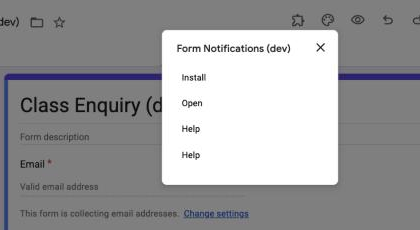
Install and open
2

Save the first rule

A rule that emails you every response is already filled in. Click Save, then Send test to see the email.
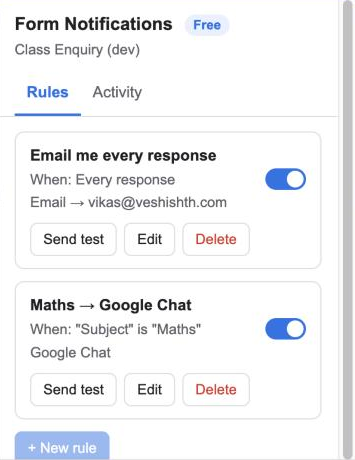
Save the first rule
3

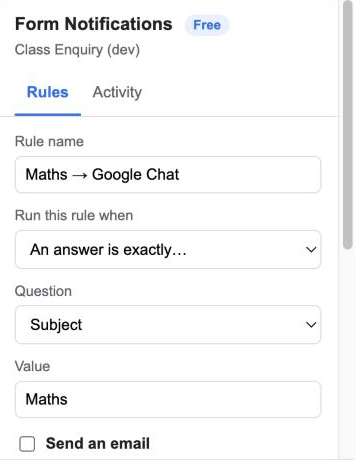
Route by answer

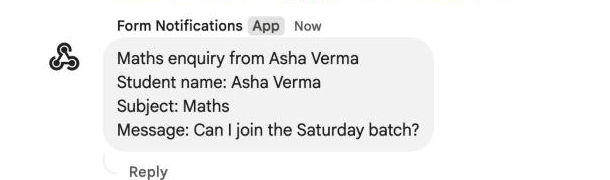
Add a condition such as when "Subject" is "Maths", email the maths teacher and post to the #maths channel.
Route by answer
4

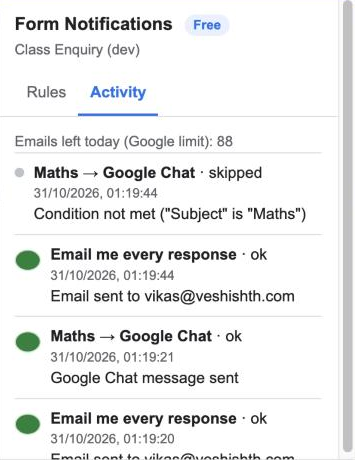
Watch the Activity tab

Every submission is listed with what was sent and to whom. If anything fails, you get an email.
Watch the Activity tab

Top features

Route by answer

Send each response to a different person or channel depending on what the respondent chose. Learn more

Route by answer

Email, Slack, Discord, Google Chat and Telegram

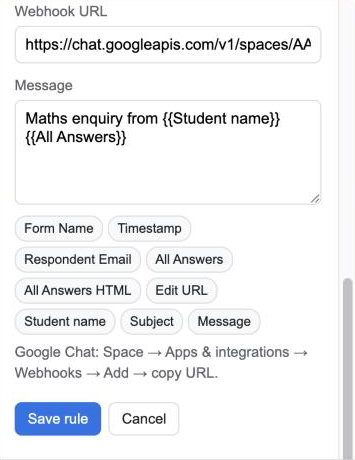
Paste a webhook URL; there is nothing else to set up. Learn more

Email, Slack, Discord, Google Chat and Telegram

Personalised messages

Use {{Question}} placeholders in the subject, body and recipient fields. {{All Answers}} inserts a neat table of the whole response. Learn more

Personalised messages

Notify the respondent

Put {{Respondent Email}} in the To field to send a confirmation to the person who filled in the form. Learn more

Notify the respondent

Activity log

The last 30 submissions, each marked sent, skipped or failed, with the reason. Learn more

Activity log

Failure alerts

If a webhook or email fails, you get one email per hour telling you what broke, so no response goes unseen. Learn more

Failure alerts

Private and secure

Rules are stored inside your form. Responses go straight from Google to your inbox or chat tool; nothing is stored on our servers. Learn more

Private and secure

Ready to try it? It's free to start.

Install Form Alerts

Plans and pricing

Start free. Upgrade when you need more.

Free

$0
  • 1 rule per form
  • Email notifications
  • 1 chat channel
  • Activity log and failure alerts
  • Help Center support
Install

Pro

$29 / year per user
  • Unlimited rules per form
  • Route by answer
  • All chat channels
  • CC recipients
  • Email support within 1 business day
Upgrade

Google's own sending limit applies to every plan, about 100 emails a day on a free Gmail account and 1,500 on Google Workspace. The add-on shows how many you have left.

Frequently asked questions

What happens when I buy?

You get a licence key by email within a minute. Paste it under "Enter licence key" in the add-on.

What counts as a user?

One Google account. The licence works on every form that account owns.

Does the respondent need the add-on?

No. Only the form owner installs it.

Why did an email not arrive?

Open the Activity tab. The most common reasons are a typo in the address, Google's daily limit, or the message landing in spam.

Where is my data?

Your rules live inside the form's own storage. Form answers are read only at the moment a response is submitted and are sent directly to the addresses and channels you chose.

Can I cancel?

Yes, any time. The licence stays active until the end of the year you paid for.

Permissions it asks for, and why

We ask for the smallest set Google allows. Full details in the privacy policy.

PermissionWhy it is needed
forms.currentonlyRead the questions and new responses of the form the add-on is open in, and nothing else in your Drive.
script.send_mailSend the notification emails from your account.
script.scriptappCreate the "on form submit" trigger that runs the rules.
script.external_requestPost messages to Slack, Discord, Google Chat and Telegram webhooks you configure.
script.container.uiShow the sidebar inside Google Forms.
userinfo.emailKnow which Google account installed the add-on, for the licence.

Who uses it

Schools route enquiries to the right teacher. Hiring teams send each application to the hiring manager for that role. Support teams post every request into a Slack or Discord channel. Event organisers send a confirmation to each registrant.