Publish your form and get the link
The one-time deployment step, explained click by click, and how to change the link later.
The upload page runs under your Google account, so that uploads go into your Drive. Google requires you to publish it yourself, once. It takes about two minutes.
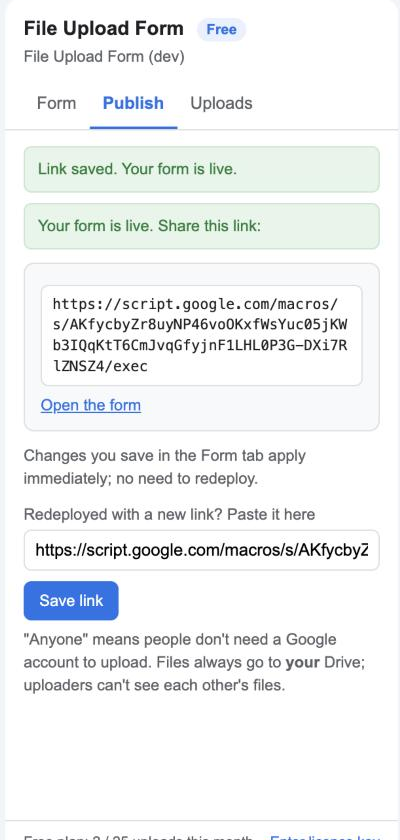
Steps
- In the spreadsheet choose Extensions → Apps Script. The script editor opens in a new tab.
- Click Deploy → New deployment (top right).
- Click the gear next to Select type and choose Web app.
- Set Execute as: Me and Who has access: Anyone. Leave the description empty.
- Click Deploy. If Google asks, click Authorise access and allow the permissions.
- Copy the Web app URL (it ends in
/exec). - Back in the sheet, open the sidebar’s Publish tab, paste the URL and click Save link.
The tab turns green and shows the link. Share it.
Why “Anyone”?
“Anyone” means the page itself is public: visitors don’t need a Google account. It does not share your Drive or your sheet. Visitors can only send files in; they can’t see your folder, your other files, or other people’s uploads.
Changing the form later
Settings saved in the sidebar apply immediately. You don’t need to redeploy for a new title, colour, fields or file rules.
Changing the link
If you ever create a new deployment (for example after moving the sheet to another account), paste the new URL into the Publish tab and click Save link. Old links stop working when you archive the old deployment in the script editor (Deploy → Manage deployments).
The grey banner
Every page published this way shows Google’s line “This application was created by a Google Apps Script user” at the top. It can’t be removed; it tells visitors that the page runs under a Google account rather than on a third-party server. Visitors can dismiss it.