Install and run your first AI formula
Key, first formula, first column fill, in about five minutes.
1. Install and open
Install from the Google Workspace Marketplace, open a spreadsheet and choose Extensions → AI Formulas for Sheets → Open. The first time, Google asks you to allow the permissions listed on the privacy policy.
2. Add a Gemini key
In the sidebar open Settings, click the link to Google AI Studio, click Create API key, copy it and paste it into the add-on. See getting a key. The key is stored with this spreadsheet so that formulas can use it.
3. Type a formula
In an empty cell next to some text, for example a customer review in B2:
=AI_CLASSIFY(B2, "Bug, Billing, Feature request, Praise")After a few seconds the category appears. Drag the formula down. Each new cell takes a few seconds; cells you have already computed are cached and come back instantly.

The other functions work the same way: =AI("Write a one-line summary of", B2), =AI_EXTRACT(B2, "the order number"), =AI_TRANSLATE(B2, "Hindi"), =AI_SUMMARIZE(B2, 20). The full list is in functions.
4. Fill a column without formulas
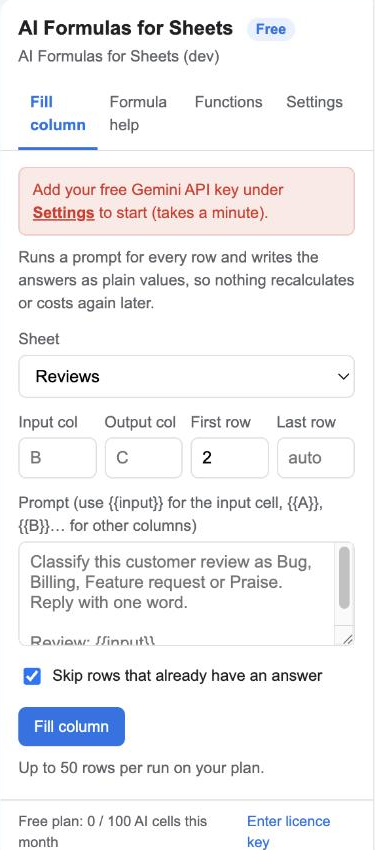
For more than a handful of rows use the sidebar’s Fill column: choose the sheet, the input column, the output column, write the prompt with {{input}}, and click Fill column. The add-on works through the rows with a progress bar and writes plain values. See Fill column.
5. When you are done
Formulas stay live. If you want a column frozen for good, select it and use Edit → Paste special → Values only, or use Fill column in the first place.