Fill a column with AI
Run a prompt down a column and get plain values back, with placeholders, progress and Stop.
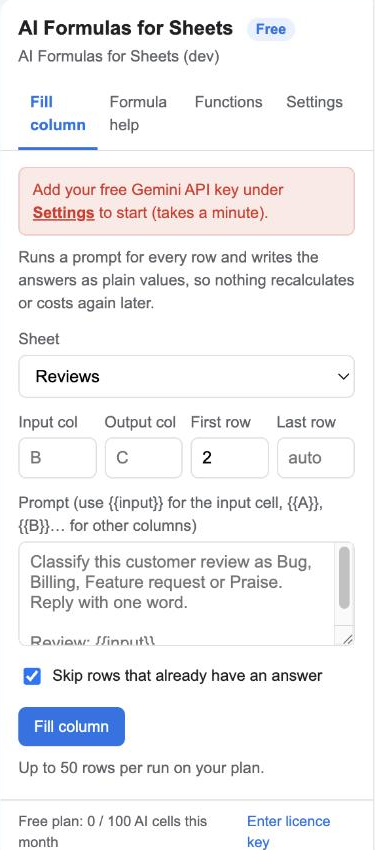
Fill column is the right tool for anything beyond a few rows: it writes values, not formulas, so the sheet stays fast and nothing is ever recalculated or re-billed.
Settings
| Field | Meaning |
|---|---|
| Sheet | Which tab to work on |
| Input col | The column with the text to work from, e.g. B |
| Output col | Where answers go, e.g. C. Existing values are kept when Skip rows that already have an answer is on. |
| First / last row | Row range; last row defaults to the last row with data |
| Prompt | What to do with each row |
Placeholders
{{input}}is the input cell.{{A}},{{B}}, …{{Z}}are the other cells in the same row, so a prompt can use several columns: Write a two-line product description for {{A}} priced at {{C}} for the {{D}} market.
If the prompt contains no placeholder, the input is appended automatically.
Running
Click Fill column. Rows are processed in batches of ten with a progress bar; Stop finishes the current batch and keeps what was written. Run again later with Skip rows that already have an answer ticked to do only new rows.
Free plan: up to 50 rows per run. Pro: 1,000.
Tips
- Ask for a format: Reply with one word, Reply with a number only, Reply in under 15 words.
- Put a few examples in the prompt for consistent labels.
- Errors on a single row (for example a Gemini 503 during a busy minute) are written into that row’s cell so you can see them and re-run for just those rows.