Install and make your first quiz
From a blank form to a graded quiz in about three minutes.
1. Install and open
Install from the Google Workspace Marketplace, open a Google Form (new or existing), and choose Quiz Maker for Forms → Open from the puzzle-piece menu at the top. The first time, Google asks you to allow the permissions listed on the privacy policy.
2. Add your Gemini key (once)
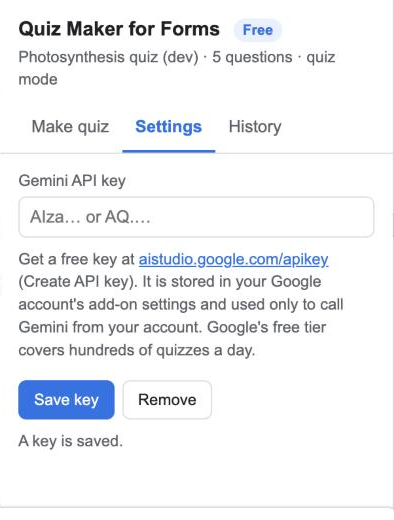
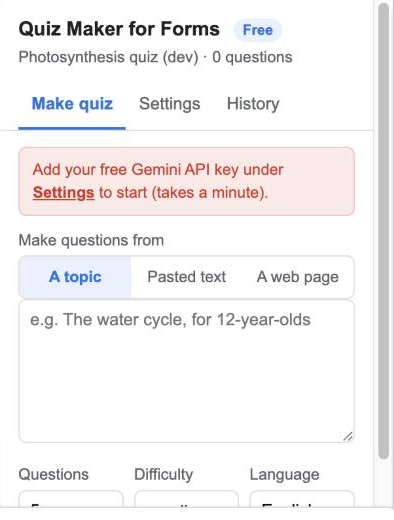
The sidebar asks for a Gemini API key. Open Settings, click the link to Google AI Studio, click Create API key, copy it and paste it into the add-on. Details in the API key guide.
3. Choose a source
Back on Make quiz:
- A topic: type it, e.g. The French Revolution, for 15-year-olds.
- Pasted text: paste notes, a chapter or an article (up to 12,000 characters). Questions use only that text.
- A web page: paste the address; the add-on reads the article text.
Set the number of questions, difficulty and language, then click Generate.
4. Review
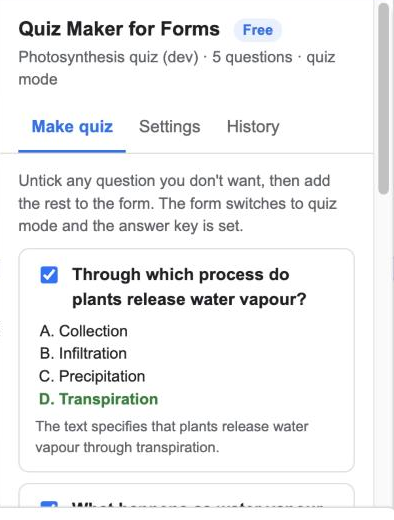
Each question shows its four options, the correct one in green, and the explanation. Untick any question you don’t want. Optionally make questions required or shuffle their order.
5. Add to form
Click Add to form. The add-on switches the form to quiz mode (if it isn’t already), appends the questions as multiple-choice items worth 1 point each, marks the correct answer, and sets the explanation as feedback for both correct and incorrect answers.
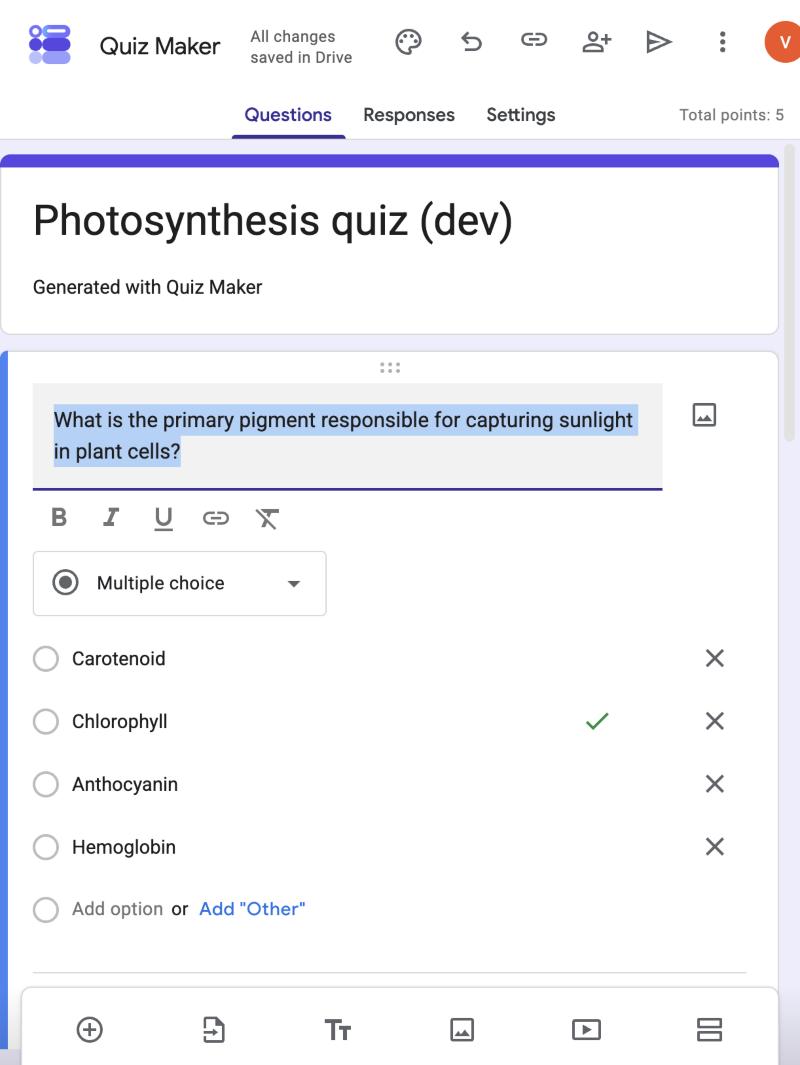
Edit anything in Google Forms afterwards, then send the form as usual.