Install and make your first deck
From a topic to eight themed slides with notes in about two minutes.
1. Install and open
Install from the Google Workspace Marketplace, open a Google Slides presentation (new or existing) and choose Extensions → AI Slides → Open. The first time, Google asks you to allow the permissions listed on the privacy policy.
Tip: pick the theme you want first (Slide → Change theme). The add-on uses the deck’s layouts, so new slides take that look.
2. Add a Gemini key (once)
Open Settings, click the link to Google AI Studio, click Create API key, copy it, paste it into the add-on and Save key. Details in getting a key.
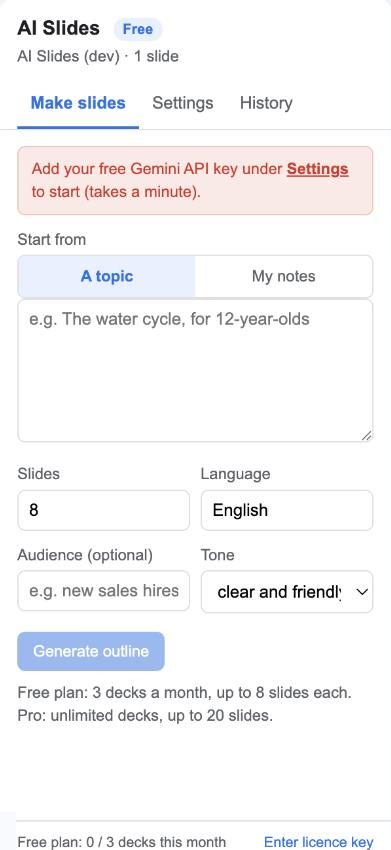
3. Describe the deck
On Make slides choose A topic or My notes:
- Topic: one line, with audience and purpose if you have them. The water cycle, for 12-year-olds. End with a quiz slide.
- Notes: paste up to 12,000 characters; the slides keep your facts and order.
Set the number of slides, the language, an optional audience and a tone, then click Generate outline.
4. Review the outline
After about 30 seconds the sidebar shows the deck title, subtitle and a card per slide with its bullets. Nothing has been added to your presentation yet. Click Back to change the brief and regenerate, as many times as you like.
5. Add to presentation
Tick Replace the existing slides if you started from a blank deck and want the placeholder slide gone, keep Add a closing slide if you want one, and click Add to presentation. A title slide and one slide per card appear, with speaker notes.
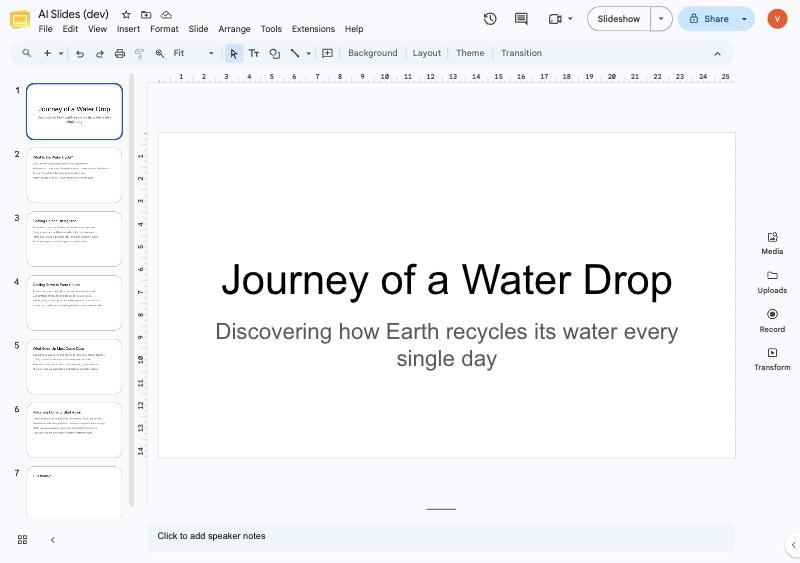
6. Finish in Google Slides
Reorder, restyle, add images, present, or File → Download as PowerPoint or PDF. The add-on’s job is the first draft.